

Choosing between a single vs. dual monitor setup depends on how you work, how much desk space you have, and what your computer can support.
A second monitor can reduce window switching and make reference-heavy work easier. For focused workflows, one well-positioned display may provide everything you need with less equipment and setup complexity.
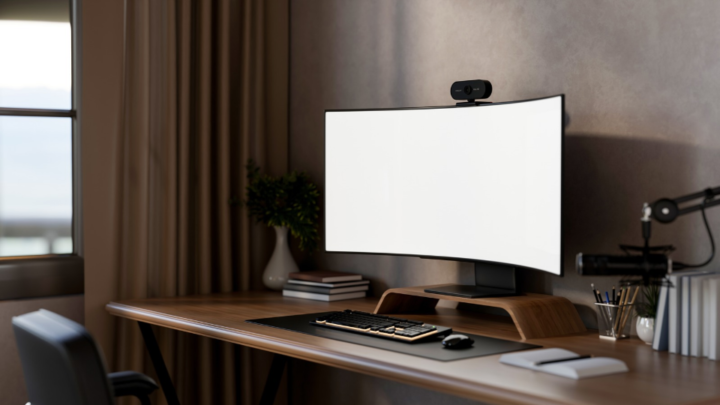
Single vs Dual Monitors At A Glance
The practical difference is how much information you need visible at the same time.
| Consideration | Single Monitor | Dual Monitors |
|---|---|---|
| Visible workspace | Best for focused or sequential tasks | Better for multiple visible applications |
| Window management | More switching during multi-application work | Can reduce repeated switching |
| Desk space | Lower requirement | Requires more space or suitable mounting |
| Hardware | Usually straightforward | May require additional outputs, adapters or a dock |
| Setup complexity | Fewer connections | More cabling, configuration and positioning |
| Cost | Usually lower | May require hardware beyond the second monitor |
| Best suited to | Focused workflows | Comparison, reference and multi-application workflows |
Neither configuration is automatically better. A second monitor is most useful when it solves a repeated workflow problem.
When A Single Monitor Setup Makes More Sense
A single monitor can be the better option when most work happens within one primary application or you rarely need information visible side by side.
It may suit you if:
- Your work is primarily focused rather than reference-heavy.
- You rarely switch between the same applications.
- Your existing display provides enough usable workspace.
- Desk width or depth is limited.
- You prefer fewer cables and devices.
- A second screen would only be used occasionally.
A single display also means fewer connections and positioning decisions, which can suit smaller home offices and simple laptop-based setups.
Before upgrading, identify what your current screen prevents you from doing efficiently. If there is no recurring limitation, another monitor may add complexity without improving your workflow.
When A Dual Monitor Setup Is More Useful
Dual monitors become more useful when your work regularly depends on seeing information from two sources at once.
A consultant might prepare a document while keeping research or client information visible. A remote employee might keep a video meeting open alongside a spreadsheet, presentation, or project system.
Two monitors can be particularly useful when you regularly:
- Compare documents, spreadsheets or browser pages.
- Work from reference material while writing or entering information.
- Transfer information between applications.
- Keep communication tools visible alongside primary work.
- Participate in video meetings while accessing other applications.
- Monitor information on one screen while working on another.
The second display should have a clear role. If you cannot identify what would regularly occupy it, the extra screen may offer limited practical value.

Does A Dual Monitor Setup Actually Improve Productivity?
A useful monitor productivity comparison should focus on workflow rather than assuming two screens automatically improve productivity.
The main advantage is reduced window management. If one application is used for the task and another for reference, keeping both visible can remove repeated minimising and switching.
This can help when:
- Preparing documents from source material.
- Comparing figures between spreadsheets.
- Entering information from one system into another.
- Following instructions while completing a task.
- Using notes or agendas during video meetings.
The benefit is smaller when work is naturally sequential. If you spend long periods focused on one application, a second display may remain largely unused.
More visible information can also create distraction. Email, messaging platforms, and notifications permanently occupying another screen do not necessarily improve productive work.
A better question is: Would keeping specific information visible remove recurring friction from my workflow?
If the limitation involves peripherals or other technology rather than screen space, broader home office productivity equipment may be more relevant.
Compare Your Workflow Before Choosing
Review a normal working day before deciding whether to add another screen.
Ask yourself:
- How often do I switch between applications? Repeated switching between the same applications strengthens the case for more visible workspace.
- Do I regularly compare information? Side-by-side reference work is a strong use case for dual monitors.
- What would stay on the second display? A specific answer usually indicates a genuine need.
- Do video meetings interrupt other work? A separate display can keep meeting controls away from documents or systems needed during the call.
- Is screen space actually the problem? Another monitor will not solve unrelated performance or connectivity issues.
- Does the desk have enough usable space? Extra screen area should not make the physical workspace harder to use.
- Can the computer support the configuration? Check compatibility before purchasing.
This keeps the decision tied to an actual working requirement rather than the assumption that a larger setup is inherently better.
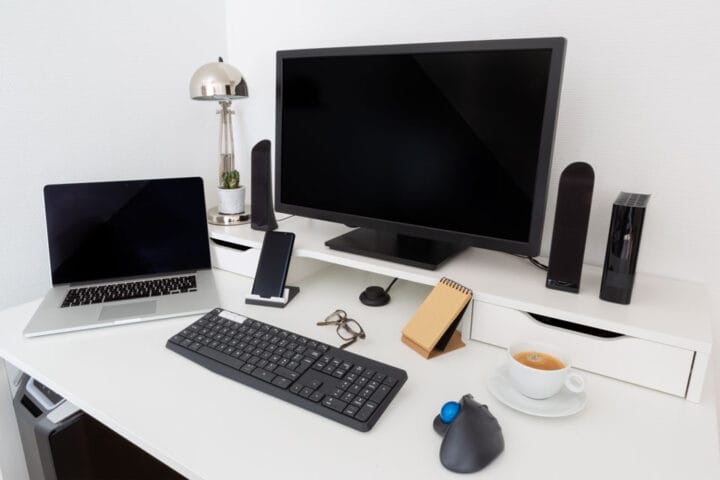
Check Your Hardware Before Adding A Second Monitor
Once two screens make sense for the workflow, confirm that the existing hardware can support them.
A computer may have several physical ports without supporting the intended combination of external displays. Check:
- How many external displays the computer supports.
- Which display outputs are available.
- Whether USB-C connections support video output.
- Whether a docking station is required.
- How many displays the dock supports.
- Whether adapters are needed.
- The display resolutions involved.
- Which other peripherals need connections.
For laptop-based setups, a docking station may handle monitors, charging, networking, and USB peripherals at the same time. It needs to work with the complete configuration, not simply provide enough physical ports.
Compatibility should be considered across the computer, connection method, dock or adapters, and displays. Checking this before purchasing can prevent an apparently simple upgrade from requiring unexpected hardware changes.
Plan The Physical Monitor Setup
Technical compatibility does not guarantee a practical workspace. Two monitors also need to fit the desk and remain comfortable to use.
Consider:
- Available desk width and depth.
- Which screen will be the primary display.
- Where the secondary display will sit.
- Whether a laptop screen will remain in use.
- Space required by monitor stands.
- Whether mounting is practical.
- Cable routes between displays, computer, and power.
- Access to power connections.
- Remaining space for the keyboard, mouse, and other equipment.
This is especially important when moving from one large display to two separate monitors. The physical footprint can change substantially.
If monitors are part of a wider workspace redesign, their placement is better considered within the complete home office setup.
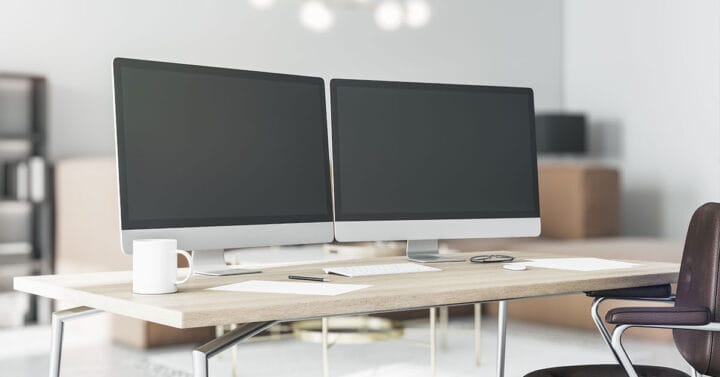
Consider The Full Cost Of Moving To Dual Monitors
The second display may not be the only purchase required.
Depending on the existing setup, you may also need:
- Display cables
- Adapters
- A docking station
- Monitor arms or alternative stands
- Additional power access
- Desk changes
- Installation and configuration
Someone with suitable outputs and enough desk space may only need a monitor and cable. A laptop setup with limited connectivity may require several supporting components.
Plan the complete configuration before buying individual items. If several parts of the workspace are being upgraded together, a broader home office equipment buying guide can help coordinate those purchasing decisions.
Common Dual Monitor Setup Mistakes
Many problems occur when individual components are purchased without considering the complete setup.
Buying The Monitor Before Checking Compatibility
A suitable monitor does not guarantee that the computer can support two displays as intended.
Check the computer’s external-display capabilities and connection method first, particularly when a dock or adapter is involved.
Assuming Any Docking Station Will Support Two Displays
Multiple display connectors on a dock do not automatically mean it will support the required arrangement.
The computer, dock, connection method, and displays need to work together.
Ignoring The Physical Footprint
Two monitors may fit on a desk while still leaving an awkward working position or insufficient usable surface area.
Account for stands, mounting hardware, laptop placement, and other equipment before buying.
Adding A Screen Without A Defined Workflow
Without a clear role for the second display, it can become extra visual clutter rather than a useful productivity tool.
Identify the recurring workflow first, then decide whether more screen space addresses it.
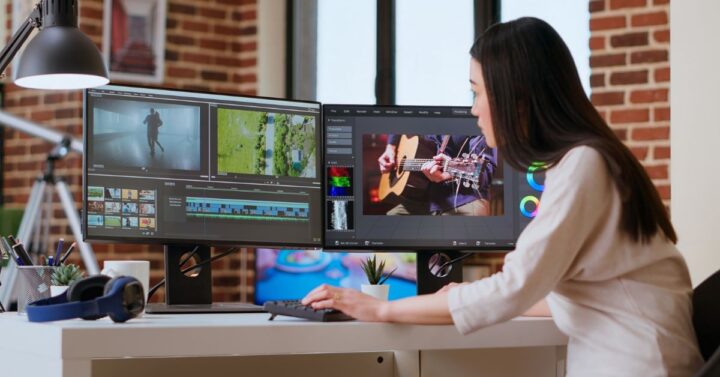
Forgetting Cabling And Power
Additional displays introduce more connections. Planning cable routes and power access before installation helps keep the workspace practical and easier to manage.
Single Or Dual Monitor: A Practical Decision Checklist
A single monitor is likely to remain suitable if:
- Most work happens within one application at a time.
- You rarely need information visible side by side.
- Your current display provides enough working space.
- Desk space is limited.
- You value a simpler setup with fewer connections.
A dual-monitor setup is more likely to be useful if:
- You repeatedly switch between the same applications.
- You frequently compare or transfer information.
- Reference material needs to remain visible while you work.
- Video meetings regularly run alongside other tasks.
- The desk can comfortably accommodate another display.
- Your computer can support the intended arrangement.
If two monitors suit the workflow but the technical requirements are unclear, resolve compatibility before purchasing.
When Professional Monitor Installation Can Help
A straightforward monitor connection does not necessarily require professional assistance. Support becomes more useful when the upgrade involves several interconnected components.
Professional hardware installation may be appropriate for:
- Multiple monitors and devices.
- Docking stations or adapters with uncertain compatibility.
- Monitor arms or mounting.
- Complex cable routing.
- Peripheral integration.
- Display detection or configuration problems.
- Wider changes to the home-office technology setup.
In these situations, the task is not simply connecting another screen. It is ensuring the equipment is compatible and integrated into a practical working environment.

Frequently Asked Questions About Single And Dual Monitor Setups
These common questions cover the practical considerations that often come up when choosing and configuring a single or dual monitor setup.
Is One Large Monitor Better Than Two Monitors?
It depends on how you use the screen space. One large monitor provides a continuous workspace with fewer physical components. Two monitors create separate display areas, which can suit work where specific applications or reference material need to remain visible.
Can A Laptop Support Two External Monitors?
Some laptops support two or more external monitors, while others have limitations. Capability depends on the laptop, its display support, available connections, and any docking hardware.
Check the intended configuration rather than assuming multiple physical ports mean multiple external displays are supported.
Do I Need A Docking Station For Dual Monitors?
Not necessarily. Some computers can connect directly to multiple monitors.
A docking station may be useful or necessary when a laptop has limited connections or when displays, peripherals, networking, and charging need to connect through one point. The dock still needs to support the intended display arrangement.
Do Both Monitors Need To Be The Same Size?
No. Different monitor sizes can work together.
What matters is whether the arrangement provides useful screen space and can be positioned practically. Matching displays may create a more consistent arrangement, but identical sizes are not required.
Can I Use My Laptop Screen As A Second Monitor?
A laptop’s built-in display can often remain active alongside an external monitor. This can provide some dual-screen benefits without requiring two separate desktop monitors.
Whether it works well depends on positioning, desk space, and what you need visible on each display.
Is A Dual-Monitor Setup Worth It For Working From Home?
It can be when the second display addresses a recurring need, such as comparing information, keeping reference material visible, or reducing application switching.
If your work is already comfortable on one screen, another monitor may offer less benefit. Start with the workflow problem, then decide whether additional display space solves it.
Choose The Setup That Fits How You Work
Choose your monitor configuration around workflow, available space, and hardware compatibility. If implementation becomes complex, plan the complete setup before purchasing additional equipment.