
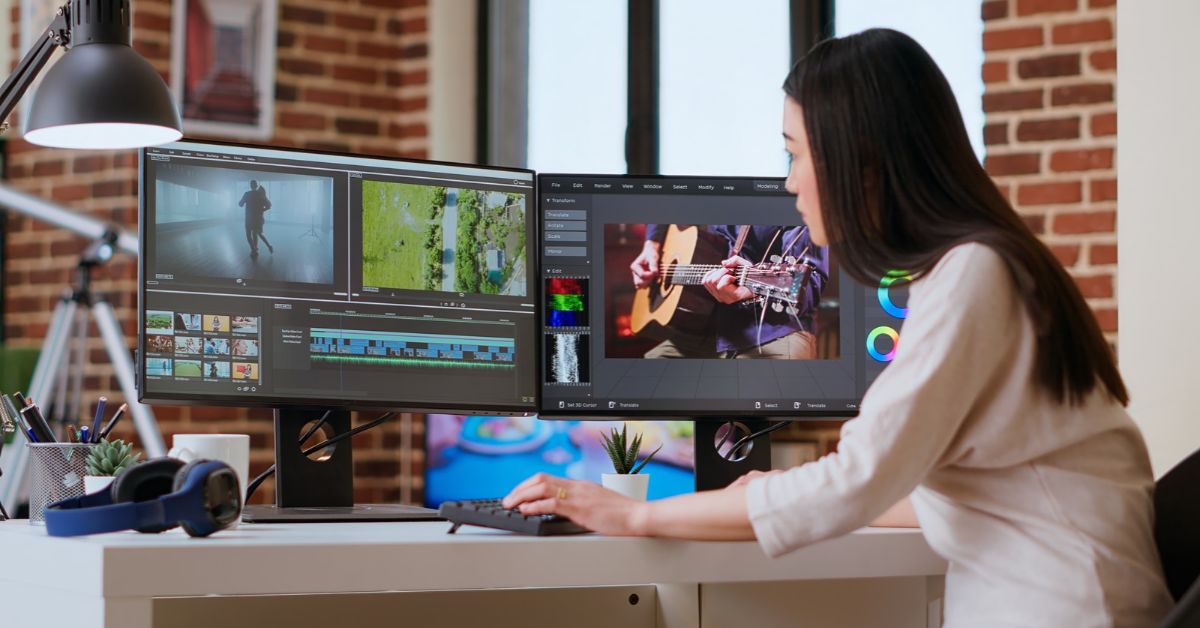
A reliable home office depends on more than a computer, monitor, and internet connection. Your equipment, connectivity, software, power, and workspace need to function together.
Use this home office setup checklist when creating a workspace, moving your office, or planning an upgrade. It covers what to check, in what order, and where compatibility or reliability problems commonly appear.
Start With What Your Work Requires
Before choosing equipment, define what your home office needs to support. This reduces unnecessary purchases and helps ensure each component fits the complete setup.
Check:
- Core work activities: Identify the applications and platforms you use each day.
- Computer requirements: Confirm whether you need a laptop, desktop, or multiple computers.
- Display requirements: Decide whether you need one monitor, multiple monitors, or regular laptop-only use.
- Video conferencing: Account for your camera, microphone, speakers, or headset.
- Peripherals: Include keyboards, mice, printers, scanners, and specialist devices.
- Files and services: Identify cloud storage, shared drives, work accounts and collaboration platforms.
- Existing equipment: Decide which devices will remain in the setup.
- Reliability requirements: Consider the impact if your internet, computer, dock, or another essential component fails.
This first stage of setup planning establishes your requirements before products enter the decision.
Check The Workspace Before Choosing Equipment
Technology needs to work in the room where you plan to use it. Check the physical environment before finalising purchases or workstation placement.
Your office checklist should include:
- Accessible power outlets
- Internet availability
- Wi-Fi performance at the desk
- Ethernet availability if required
- Enough space for screens and peripherals
- Space for a dock, chargers, and supporting equipment
- Practical cable routes
- Access to device ports and controls
Pay particular attention to connectivity at the actual workstation. A fast internet service does not guarantee reliable Wi-Fi throughout the home.
If the intended workspace has weak or inconsistent connectivity, identify that before installing everything else. Network design and Wi-Fi optimisation are separate technical issues, but unresolved connectivity can undermine an otherwise suitable setup.
Create Your Essential Equipment Checklist
Once your work and workspace requirements are clear, create an inventory of what you need.
Depending on your work, this may include:
- Laptop or desktop computer
- Monitor or monitors
- Keyboard and mouse
- Webcam
- Headset, microphone, or speakers
- Docking station or USB hub
- Router or connectivity equipment
- Printer or scanner
- Chargers and power adapters
- Display and data cables
- Connection adapters
- Storage or backup equipment
For each item, mark it as available, needed, or compatibility not confirmed.
That final category matters. Existing equipment and new purchases should not be considered suitable until you know they will work with the rest of the setup.
Detailed equipment selection should follow your workload, existing devices, and compatibility requirements. If you are still deciding what hardware you need, the Home Office Equipment Needed resource can address equipment selection in greater depth.
Confirm Your Equipment Will Work Together
Compatibility problems often occur between devices rather than within individual products.
Before installation, confirm:
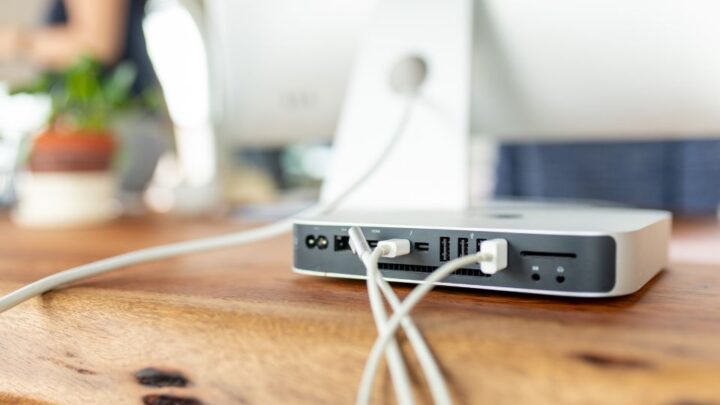
- Available computer ports
- Monitor connection requirements
- Dock compatibility
- Supported display arrangements
- Charging and power delivery requirements
- Peripheral connections
- Compatibility of existing devices with a new computer or operating system
- Required adapters
- Essential software compatibility
Check these relationships before purchasing where possible.
For example, a docking station can have enough physical ports and still be unsuitable because it does not support the required displays, charging, or computer connection.
Compatibility should therefore be assessed across the complete setup, not one product at a time.
Prepare Your Software, Accounts And Work Tools
Hardware installation is only part of making a home office operational. The applications, accounts and services you rely on also need to work correctly.
Confirm:
- Required applications are installed.
- Operating system and application updates are complete.
- Work email and essential accounts are accessible.
- Collaboration platforms are configured.
- Video conferencing software detects the correct camera, microphone, and audio device.
- Cloud storage and shared files are accessible.
- Printers and scanners have the required software.
- Essential peripherals are recognised correctly.
Complete these checks before the office becomes business-critical where possible. A missing login, unsupported application, or unconfigured peripheral can be just as disruptive as a hardware problem.
Set Up In A Logical Order
A staged installation makes problems easier to isolate. Connecting everything at once can make it difficult to determine whether an issue comes from the computer, dock, peripheral, network, or configuration.
A practical sequence is:
- Confirm the workspace, power, and internet connection.
- Position the computer and displays.
- Connect the dock and essential peripherals.
- Establish and test network connectivity.
- Install and configure essential software and accounts.
- Test each component as it is added.
- Test the complete environment under normal working conditions.
The objective is not simply to connect everything. It is to create an environment where the components operate reliably together.
If multiple devices, purchasing decisions, and technical dependencies need to be coordinated, the Home Office Setup Service is the appropriate pathway for professional implementation.
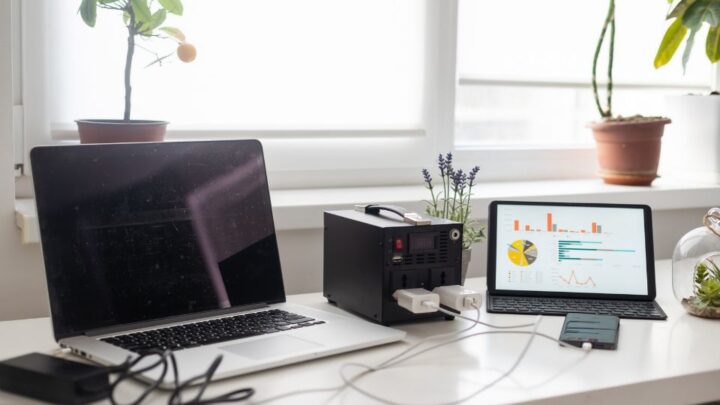
Test The Setup Before You Rely On It
A device connecting successfully once does not mean the home office is ready for regular use. Test the setup in conditions that reflect a normal working day.
Check:
- Internet stability
- Wi-Fi performance at the workstation
- Video call quality
- Monitor and display behaviour
- Docking and undocking if relevant
- Webcam, microphone and headset operation
- Charging and power delivery
- Printing and scanning where required
- Access to cloud platforms and shared files
- Essential applications and accounts
- Behaviour after restarting
- Reconnection after unplugging equipment
Look for repeatability, not just initial success.
A monitor that occasionally fails to reconnect, a dock that inconsistently charges, or Wi-Fi that becomes unstable during video calls may technically work, but still cause regular disruption.
Check The Details That Are Easy To Miss
Many frustrating home office problems come from small dependencies missed during planning.
Wi-Fi At The Actual Desk
Test connectivity where you will work. Performance elsewhere in the home does not confirm that the workstation has a reliable connection.
Ports, Cables And Adapters
Compare the connections you need with the ports available through the computer and dock. Check cable types and adapters before installation.
Docking Requirements
Choose a dock that supports the computer, displays, peripherals, and power requirements. Connector type alone does not establish compatibility.
Existing Equipment
Older monitors and peripherals may still be useful, but confirm how they will integrate with new equipment before relying on them.
Video Conferencing
Test a real call where practical. Check the camera, microphone, audio, conferencing application, and connection together.

Restart And Reconnection
Restart the computer and reconnect equipment during testing. Devices should return to their expected configuration without repeated manual intervention.
Future Expansion
Consider known future requirements such as another monitor, a replacement computer, or additional peripherals. This can influence compatibility decisions made today.
Know When You Need More Planning
A straightforward home office can often be set up independently when the requirements are clear, and the equipment integrates without difficulty.
More detailed planning may be useful when you encounter:
- Uncertain equipment compatibility
- Multiple computers or devices sharing the workspace
- Persistent Wi-Fi or connectivity problems
- A relocation or major workspace redesign
- Existing and new equipment that must work together
- A substantial technology upgrade
- Repeated DIY fixes that have not resolved the problem
- A business-critical workspace where recurring disruption has significant consequences
The right next step depends on what remains unresolved.
If you are unsure what to purchase or how the environment should be planned, a Home Office Consultation can help clarify the requirements before implementation.
If the requirements are understood but the complete environment needs professional installation, configuration, and testing, the Home Office Setup Service is the more relevant pathway.
Frequently Asked Questions
These questions cover common decisions that arise while working through a home office setup checklist.
What Do I Need To Set Up A Home Office?
You need suitable computing equipment, reliable connectivity, appropriate power, required peripherals, essential software, and enough workspace for the complete setup.
The exact equipment should follow your work requirements rather than a universal product list.
What Should I Set Up First In A Home Office?
Start by defining your work requirements. Then check the workspace, power, and connectivity before finalising equipment and compatibility.
Installation, software configuration and testing should follow once those foundations are clear.
How Do I Know If My Existing Equipment Is Suitable?
Check whether it meets your work requirements and integrates with the other technology in the planned setup.
Pay particular attention to ports, display connections, operating system support, docking, and power requirements.
Should I Test My Wi-Fi Before Setting Up My Desk?
Yes. Wi-Fi performance can vary significantly within the same home, so test from the intended workstation.
If the connection is unstable there, address the issue before depending on the office for regular work.
Can I Set Up A Home Office Myself?
Many straightforward setups can be completed independently when equipment requirements, compatibility, and connectivity are clear.
Professional assistance becomes more relevant when there are unresolved compatibility issues, unreliable networking, multiple interconnected devices or recurring technical problems.
Complete Your Home Office Setup Checklist
Before relying on your workspace each day, make one final check:
- Work requirements are defined.
- Workspace and power are ready.
- Internet and Wi-Fi performance have been checked.
- Required equipment is accounted for.
- Compatibility is confirmed.
- Necessary cables and adapters are available.
- Software and work accounts are configured.
- Peripherals operate correctly.
- Video conferencing has been tested.
- Restart and reconnection behaviour has been checked.
- The complete setup performs reliably during normal work.
- Remaining technical or planning issues have been identified.
If something remains unresolved, use the problem to guide your next step. Equipment uncertainty requires further equipment planning. Compatibility or design questions may warrant a consultation. Complete installation and integration may be better suited to a professional home office setup.
A finished home office should not merely be connected. It should be compatible, tested, and reliable enough for the way you work every day.