
A reliable home office depends on more than choosing good equipment. Planning, compatibility, connectivity, and configuration all affect how well the technology works together.
Many home office setup mistakes only become obvious once work begins. Video calls become unreliable, monitors or docks do not behave as expected, peripherals need constant reconnecting, or new equipment creates compatibility problems.
Recognising these issues early can help you make better technology decisions and build a home office around reliability, simplicity and the way you work.
1. Buying Equipment Before Planning The Complete Setup
Buying equipment first and working out how everything connects later is one of the most avoidable office planning mistakes.
A monitor, laptop, dock, or peripheral can look suitable on its own. Problems often appear when several products need to work together.
Before purchasing, establish:
- The computer or devices you will use.
- The number and type of displays required.
- Peripherals that need to remain connected.
- Available ports and connection requirements.
- Network and internet requirements.
- Software needed for daily work.
- How equipment needs to interact.
One poorly matched component can introduce adapters, connection limitations, or compromises elsewhere.
Start with the work and the complete environment, then choose technology that fits those requirements.
2. Assuming New Equipment Will Automatically Work Together
New products are not automatically compatible because they are current-generation technology.
Compatibility can involve computers, displays, docks, peripherals, cables, and connection standards. Equipment can also be technically compatible without providing the functionality your workflow requires.
The result may be missing features, extra adapters, unreliable connections, or unnecessary replacements.
Check compatibility before purchasing. Consider what each component connects to, which functions need to be supported, and whether the complete combination will work as intended.
This is especially important when upgrading part of an existing office. New equipment still needs to work with the technology you already have.
3. Treating Wi-Fi As An Afterthought
A high-performance computer cannot compensate for an unreliable connection.
Home offices depend on internet access for video meetings, cloud applications, file access and communication. Workspace location and network coverage can therefore affect daily work as much as the equipment on the desk.
A common mistake is installing the office first and investigating connectivity only after calls begin dropping or online applications become unreliable.
If Wi-Fi is already inconsistent, replacing office equipment will not necessarily fix the problem. The network may need separate assessment or optimisation.
The setup principle is simple: reliable connectivity needs to reach the place where the work happens.
4. Choosing Technology Without Considering How You Actually Work
Equipment specifications matter, but they do not tell you whether a product suits your working day.
A remote employee spending hours in video meetings may have different requirements from a consultant working across several applications. A freelancer using specialist software or a home-based business owner may have different performance, connectivity, and reliability priorities.
Consider:
- Applications used throughout the day.
- Number of displays required.
- Video conferencing frequency.
- Peripherals and external devices.
- Movement between home and another workplace.
- How devices need to connect or share information.
- Tasks where performance or reliability matters most.
This separates genuinely useful capabilities from specifications that add cost without improving the workspace.
The goal is not simply a powerful setup. It is one that is appropriate for the work being performed.
5. Solving Individual Problems Instead Of Looking At The Whole Setup
Home office technology operates as an interconnected environment.
Computers, displays, docks, peripherals, software, and network connections influence one another. A problem that appears to involve one component may have a cause elsewhere.
Replacing a device or connection might remove the immediate symptom without addressing why the problem occurred. Over time, this can create a collection of workarounds around an underlying planning or compatibility issue.
When several setup problems occur together, look for relationships between them rather than assuming each is independent.
This is also where home office technology planning differs from basic break-fix computer repair. The objective is not only to make one component work again. It is to ensure the wider environment works reliably as a whole.
6. Adding Workarounds Instead Of Fixing Recurring Problems
A temporary workaround can help with an unexpected problem. It becomes less useful when it turns into part of the normal working routine.
Warning signs include repeatedly:
- Reconnecting devices.
- Changing adapters or cables.
- Restarting equipment to restore normal operation.
- Switching between unreliable configurations.
- Applying the same fix after a problem returns.
If you regularly repeat the same corrective action, another temporary fix may not address the cause.
The underlying issue could involve compatibility, configuration, connectivity, or the way the wider setup has been assembled.
Recurring workarounds are therefore useful warning signs. They suggest the problem may need broader assessment rather than another isolated fix.
7. Ignoring Software And Configuration During Setup
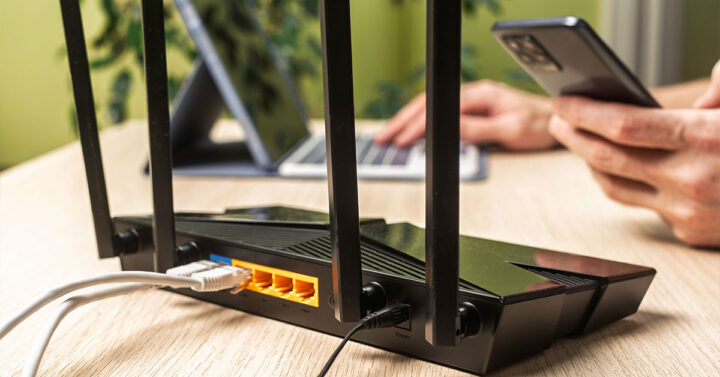
Physical installation is only one part of a functional home office.
Hardware may be correctly connected while the overall experience remains inefficient because software, settings, or device interoperability have not been properly considered.
Configuration can affect how applications interact with devices, how peripherals behave, how communication tools work, and how easily you move through daily tasks.
This does not mean every home office needs complicated configuration. It means everything turning on is not the same as everything being set up properly.
A completed setup should support normal work consistently without unnecessary steps or recurring configuration changes.
8. Planning Only For Today’s Requirements
Current requirements should drive the setup, but foreseeable changes are worth considering before making decisions that are difficult to reverse.
You may later add a display, introduce new peripherals, use different applications, move the workspace, or need better network performance.
Planning ahead does not mean buying equipment you may never use. Instead, consider whether today’s decisions create unnecessary restrictions.
Connection capacity, compatibility, and network requirements can all affect how easily the setup adapts later.
The goal is reasonable flexibility without unnecessary overbuying.
9. Assuming The Most Expensive Option Is Automatically The Best Option
Higher-priced equipment may offer better performance, build quality, or additional features. That does not automatically make it right for your home office.
A high-specification device that does not match your workload or integrate properly with existing technology can still be a poor choice.
Evaluate equipment according to:
- Suitability for your workload.
- Compatibility with existing devices.
- Required connections and functionality.
- Reliability requirements.
- How it fits into the wider setup.
- Whether additional capability provides a practical benefit.
Technology selection should follow requirements rather than price alone.
The strongest setup is not necessarily the most expensive. It is one where the components are appropriate and work together effectively.
10. Waiting Until Setup Problems Start Disrupting Work
Home office problems often begin as minor inconveniences.
A connection occasionally drops. A device needs reconnecting. Video calls become unstable. An adapter behaves inconsistently. A temporary workaround gradually becomes routine.
Individually, these issues may be tolerable. Together, they can make the workspace unreliable and repeatedly interrupt work.
Recurring connectivity, compatibility, and configuration problems are worth investigating before they become normal working conditions.
This is particularly relevant when moving, redesigning a workspace, or completing a significant technology upgrade. These situations provide an opportunity to reassess the environment rather than carry existing problems into a new setup.
If several technology decisions need to work together, or previous DIY attempts have not produced a reliable result, a structured assessment may be more useful than another isolated fix.
What These Home Office Setup Mistakes Have In Common
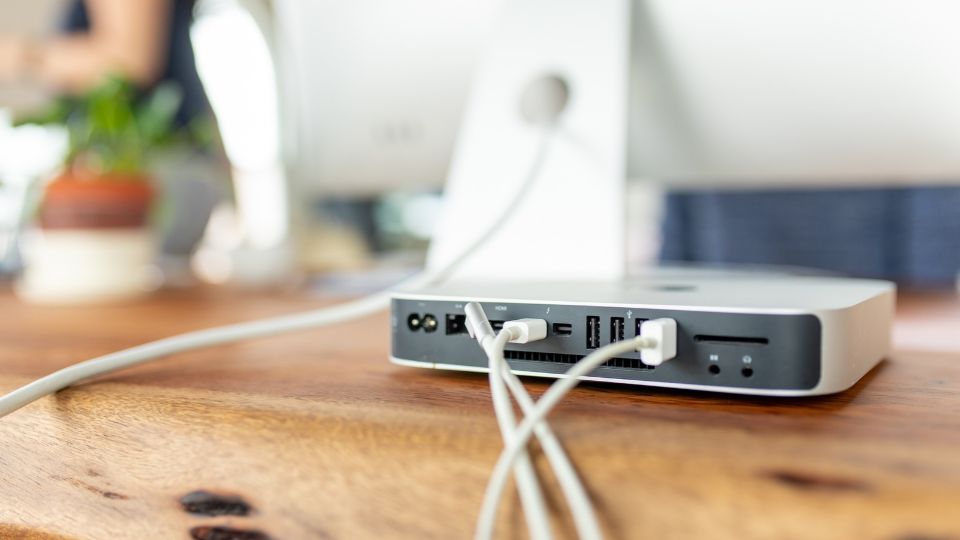
Most of these mistakes come back to one principle: a home office works best when its technology is treated as a connected environment rather than a collection of individual purchases.
Planning should account for the work being performed, equipment compatibility, connectivity, configuration, and reasonable future requirements.
Good planning can also make the environment simpler by reducing the need for workarounds later.
This is why home office setup differs from simply repairing a computer. Repair resolves a fault. Setup planning considers whether the wider technology environment is suitable, integrated, and reliable for everyday work.
When A Setup Problem Needs More Than Another DIY Fix
Not every technical problem requires professional assistance. Individual issues can often be resolved without reconsidering the entire office.
A broader assessment becomes more relevant when several issues interact, or the same problems keep returning.
Consider whether the overall setup needs attention if you are dealing with:
- Persistent connectivity problems affecting work.
- Multiple devices that do not integrate reliably.
- Repeated adapters, reconnections, or other workarounds.
- Uncertainty about whether new equipment will work with existing technology.
- A relocation or major workspace upgrade involving several technology decisions.
- Recurring problems that previous fixes have not resolved.
At that point, the issue is less about repairing one device and more about improving how the technology environment is planned.
If you are unsure whether to continue resolving the setup yourself or involve a specialist, the professional versus DIY home office setup decision is the logical next consideration.
For more complex environments, a home office setup service can coordinate planning, compatibility, sourcing, installation, and configuration rather than addressing each requirement separately.
Frequently Asked Questions
These common questions address practical concerns about planning, compatibility, connectivity, and when a home office setup may need closer attention.
What Is The Most Common Mistake When Setting Up A Home Office?
A major underlying mistake is making individual technology decisions before understanding how the complete environment needs to work.
Start with your workflow, devices, connectivity, and compatibility requirements before selecting individual components.
Should I Buy Home Office Equipment Before Planning My Setup?
Establish your requirements first.
Knowing which computers, displays, peripherals, connections, applications and network capabilities you need makes it easier to assess equipment before purchasing it.
This is especially important when new products need to integrate with technology you already own.
Can Poor Wi-Fi Be A Home Office Setup Problem?
Yes. Reliable connectivity is part of a functional home office, particularly when work depends on video meetings, cloud applications, and online communication.
Persistent Wi-Fi problems may require separate network assessment rather than changes to office equipment.
How Do I Know If My Home Office Technology Is Poorly Planned?
Look for patterns rather than isolated faults.
Recurring compatibility issues, unreliable connectivity, excessive workarounds, repeated interruptions, and equipment that does not fit your workflow can indicate a wider setup problem.
When Should I Consider Professional Home Office Setup Help?
Professional assistance can be useful when several technology decisions need to be coordinated, compatibility is uncertain, recurring problems remain unresolved, or you are planning a significant setup, relocation, or upgrade.
For simpler environments, self-setup may remain practical. The key question is whether you can confidently plan, integrate, and configure the complete environment rather than install each component separately.
Build A Home Office Around How You Actually Work
Plan your home office as one connected technology environment, with the right equipment, compatibility, and configuration for reliable everyday work.