

Remote work technology problems are rarely limited to one device. For Sydney professionals working from home, unreliable Wi-Fi, unstable video calls, incompatible equipment, and recurring faults can disrupt meetings, deadlines, and everyday productivity.
The challenge is knowing whether you are dealing with an isolated fault or a wider home office technology problem.

Why Small Technology Problems Become Bigger Remote Work Problems
Minor technical issues become more significant when the home office is the primary workplace.
An intermittent connection can interrupt client meetings. A docking issue can make monitors unreliable. Audio problems can delay calls. A peripheral that regularly disconnects can consume valuable time throughout the week.
The key factors are frequency, impact, and whether problems are connected.
An occasional fault with an obvious cause may need a straightforward fix. Several recurring problems can point to a wider issue involving connectivity, compatibility, configuration, or the overall setup.
This is common when equipment has been added gradually. Individual devices may work, but the complete environment may not suit consistent professional use.
Unreliable Internet And Wi-Fi During The Working Day
Remote work depends heavily on cloud applications, online meetings, and internet-based systems, making connectivity problems particularly disruptive.
Common warning signs include:
- Video meetings freezing or dropping out.
- Reliable Wi-Fi in some rooms but poor performance at the desk.
- Internet performance changing noticeably throughout the day.
- Cloud applications or large file transfers becoming unexpectedly slow.
- Devices regularly disconnecting.
- Performance deteriorating when more people or devices are online.
These symptoms do not automatically mean the internet plan is too slow.
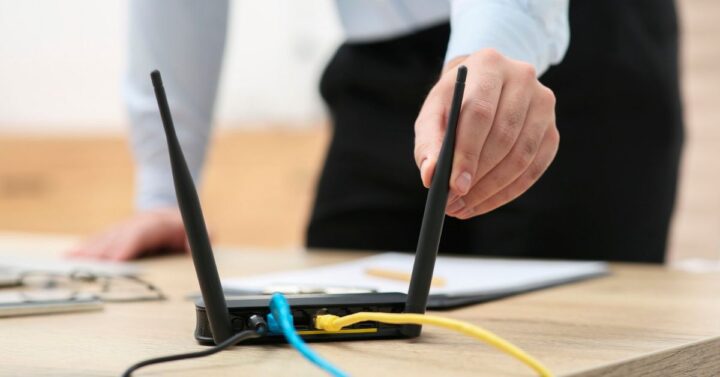
The connection entering the property is only one part of the system. Wi-Fi coverage, router placement, network configuration, the physical environment, and competing device activity can affect performance at the workspace.
Upgrading an internet plan without identifying the bottleneck may therefore achieve little. Persistent problems should be assessed to determine whether the limitation sits with the internet service, home network or connection to the workspace.
Detailed network design and Wi-Fi optimisation are separate considerations, but identifying where performance deteriorates can prevent unnecessary upgrades.
Video Meetings Expose Problems That Everyday Browsing Can Hide
A connection may appear adequate for browsing or email but become unreliable during a video meeting.
Browsing can tolerate brief fluctuations in network performance. Live audio and video require greater consistency, making underlying weaknesses more visible.
Meetings also depend on several components working together, including the laptop, webcam, microphone, headset, docking station, conferencing software, and network connection.
Problems can include:
- Audio cutting out.
- Frozen or degraded video.
- Headsets connecting inconsistently.
- Cameras or microphones not being recognised.
- Applications switching unexpectedly between audio devices.
- Performance changing after hardware or software updates.
This makes video conferencing a useful indicator of wider technology issues.
Reinstalling an application may solve a software fault, but it will not correct poor Wi-Fi coverage, unsuitable hardware or unreliable device connections. The useful question is where the failure originates, not simply where the symptom appears.
Devices And Accessories Do Not Always Work Together Cleanly
A professional home office often contains technology from several manufacturers purchased at different times.
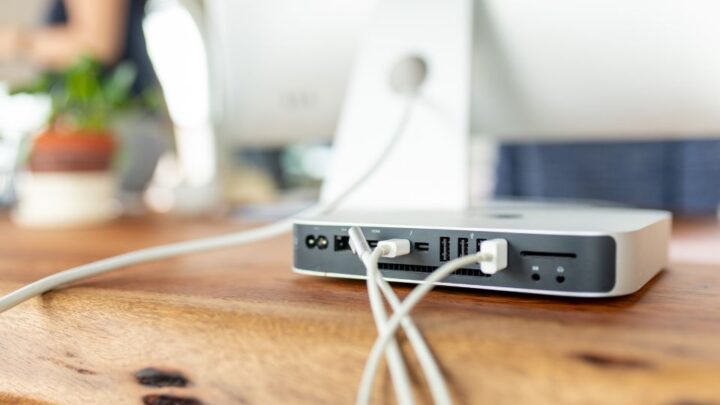
A laptop may connect to displays through a docking station while also supporting a webcam, headset, keyboard, mouse, printer, and other peripherals. Every product can work individually while the complete setup still creates problems.
Connection standards, ports, drivers, operating systems, power requirements, and device capabilities can all affect reliability.
For example, a docking station may technically support a laptop but not the required display arrangement or combination of peripherals. Additional adapters can solve one limitation while creating more complexity elsewhere.
Compatibility should therefore be considered across the environment rather than product by product. Checking how new equipment fits the existing setup can prevent unnecessary purchases and avoid solving one problem by creating another.
Piecemeal Home Office Setups Can Create Hidden Limitations
Many home offices were assembled around immediate needs rather than planned as complete technology environments.
A laptop may have started on an existing desk. A monitor came later, followed by a dock, webcam and headset as requirements changed. Meanwhile, the original home network continued supporting more work and household devices.
The individual decisions may be reasonable, but requirements can change faster than the underlying setup.
Limitations often appear when someone:
- Starts working from home more frequently.
- Moves the office to another room.
- Adds displays or peripherals.
- Changes laptops or operating systems.
- Introduces more demanding applications.
- Shares the network with more remote workers or connected devices.
At this point, changing individual components may be less useful than assessing whether the overall environment still fits current requirements.
For a new, relocated, or substantially changing workspace, a structured home office setup should consider connectivity, equipment compatibility, and implementation together.
Recurring Technical Issues Can Signal A Wider Support Problem
Troubleshooting works well when a problem is isolated. It becomes less effective when the same symptoms keep returning.
Warning signs include:
- Faults reappearing after temporary fixes.
- Several devices developing connection or configuration problems.
- Frequent restarting or reconnecting before work can continue.
- Software and peripherals behaving inconsistently.
- Significant working time being spent diagnosing technology.
- Fixing one issue only for another related problem to appear.
The question then changes from “How do I fix this fault?” to “Why does this environment keep producing faults?”
A broader assessment can determine whether the cause involves a device, software configuration, network performance, compatibility, or interaction between components.
When recurring faults interfere with normal work, ongoing home office IT support may be more appropriate than repeatedly treating each incident as unrelated.

Technology That Worked Before May No Longer Suit How You Work
Technology does not need to fail before it becomes unsuitable.
A setup that worked for occasional remote days may become restrictive when home working becomes routine. More video meetings, applications, larger files, additional displays, and new peripherals can change what is required from existing equipment.
The household environment can change too. More connected devices or another person working remotely can place additional demands on the network.
Before replacing equipment, identify the actual limitation. It may involve:
- Equipment performance.
- Network reliability.
- Device compatibility.
- Software configuration.
- Available connections.
- Overall setup design.
Diagnosis should come before purchasing. Identifying whether the constraint involves performance, compatibility, connectivity, or configuration reduces the risk of replacing equipment unnecessarily.
When Is A Technology Problem Bigger Than A DIY Fix?
Not every remote work technology problem requires professional assistance.
An isolated issue with an obvious cause may be reasonable to investigate independently. Checking connections, restarting equipment, or completing routine updates can resolve straightforward faults.
Broader assistance becomes more relevant when the cause is unclear, the problem keeps returning, or several parts of the environment are affected.
Consider a more complete assessment when:
- Connectivity remains unreliable after repeated attempts to improve it.
- Technical problems regularly return.
- Several devices, applications, or peripherals are affected.
- New equipment creates unexpected compatibility problems.
- You cannot determine whether hardware needs replacing.
- Previous purchases have failed to resolve the issue.
- Troubleshooting regularly interrupts productive or billable work.
Repeated DIY fixes can address symptoms without identifying the cause. When that pattern continues, diagnosing the environment as a whole can be more useful than attempting another workaround.

Taking A Whole-Environment Approach To Remote Work Technology
Reliable remote work depends on several technology layers working together.
The network needs consistent connectivity. Devices and peripherals need to communicate reliably. Software needs appropriate configuration. Equipment needs enough capability for the workload. The workspace must also support where and how that technology is used.
A useful principle for assessing remote work technology in Sydney is to start with the working requirement, identify the constraint, then decide what needs to change.
A practical assessment asks:
- What is failing? Identify the specific symptom and when it occurs.
- What components are involved? Consider the network, devices, software, and peripherals supporting the task.
- Is the problem isolated or recurring? Look for patterns across the environment.
- What has changed? New equipment, software, workspace arrangements, or heavier usage may expose existing limitations.
- What actually needs changing? Avoid replacing equipment until the likely cause is understood.
This approach helps separate symptoms from causes and reduces unnecessary changes.
For Sydney professionals, problems involving Wi-Fi coverage, installation, or the physical workspace may require onsite assessment. Software, configuration, and some device issues may be suitable for remote assistance.

Common Questions About Remote Work Technology In Sydney
Different symptoms can have similar causes, so identifying where the problem occurs is usually more useful than assuming which component is responsible.
Why Is My Home Wi-Fi Fine For Browsing But Unreliable During Video Calls?
Browsing and email can hide brief fluctuations in network performance. Video conferencing requires a more consistent real-time connection, making coverage, stability, or congestion problems more noticeable.
Persistent problems should be diagnosed before assuming a faster internet plan will solve them.
Should I Replace Equipment When My Home Office Becomes Unreliable?
Not automatically. Compatibility, configuration, networking, or another connected component may be responsible.
Identifying the constraint first can prevent an unnecessary replacement.
When Should I Get Professional Help With A Home Office Technology Problem?
Professional assistance becomes more relevant when problems are persistent, interconnected, difficult to diagnose, or regularly disrupting work.
It can also be useful before purchasing several new components when compatibility or overall setup requirements are uncertain.
Can Remote Work Technology Problems Be Diagnosed Remotely?
Some can. Software configuration, troubleshooting, and certain device problems may be suitable for remote assistance.
Issues involving Wi-Fi coverage, physical installation, workspace infrastructure, or complete home office implementation may benefit from onsite assessment. Home Office IT Support provides onsite services in Sydney, with remote support and consultations available Australia-wide.
Find The Right Next Step For Your Home Office
The appropriate response depends on the pattern behind the problem.
If you are establishing a workspace, relocating it, adding substantial new equipment, or dealing with a setup that developed without a clear technology plan, home office setup in Sydney is the more relevant pathway.
If the workspace is established but recurring faults continue to interrupt work, home office IT support is better aligned with diagnosing and resolving ongoing problems.
Persistent connectivity issues may instead require closer assessment of the home network and Wi-Fi environment.
In each case, the priority is to identify the underlying constraint before investing more time or money in another temporary fix.
Build A More Reliable Remote Working Environment
Persistent or interconnected technology problems deserve proper diagnosis. Get specialist support to identify the right next step for your home office.