

Buying technology for a home office involves more than checking whether a product supports your computer or has the right connector. Technology compatibility depends on how new equipment works with the hardware, software, peripherals, and connections you already use.
A product can be technically compatible but still require new cables, adapters, software changes, or replacement equipment. Checking these dependencies before purchasing can prevent unnecessary costs, downtime, and frustration.
Why Technology Compatibility Is More Than Matching Specifications
Compatibility is not a single yes-or-no specification. Different parts of a home-office setup need to work together.
A device might connect physically but lack the functionality you need. Software may support your operating system but not the version installed. A new laptop may work perfectly on its own while creating device compatibility issues with an existing dock, monitor, or peripheral.
Before buying, consider several layers of compatibility:
- Hardware: Does your computer and existing equipment meet the requirements?
- Operating system: Is your operating system and version supported?
- Software: Will required applications, drivers, and utilities work?
- Connections: Do available ports support the required data, display, or charging functions?
- Peripherals: Will monitors, docks, webcams, headsets, and other equipment continue to work?
- Network: Can your environment support any connectivity requirements?
- Practical setup: Are the power, charging, cabling, and physical requirements suitable?
For work-critical technology, the important question is not simply whether a product connects. It is whether the complete setup will work reliably for the tasks you need to perform.
What To Check Before Buying New Technology
Start with your existing environment. Identify what the new equipment must connect to, what it must support, and which parts of your setup you intend to keep.

Check Your Existing Hardware
Compare the manufacturer’s requirements with the equipment you actually use.
Relevant factors can include:
- Available ports and connection standards
- Processor or memory requirements
- Graphics and display capabilities
- Number and resolution of monitors
- Existing docks and peripherals
- Hardware features required by the device
Pay particular attention when several components depend on each other.
For example, a monitor may work when connected directly to a laptop, while the existing docking station cannot support the required resolution or display configuration. Checking only the laptop and monitor would miss an important dependency.
Check Operating System And Software Requirements
Broad descriptions such as “Windows compatible” or “Mac compatible” may not provide enough information.
Confirm the specific operating system versions supported by the manufacturer. Check whether the equipment requires drivers, manufacturer utilities, or other software.
If particular applications are essential to your work, include them in the decision. New hardware or operating systems can affect software you planned to keep using.
Check Ports, Connections, and Adapters
Matching connector shapes do not always mean matching capabilities.
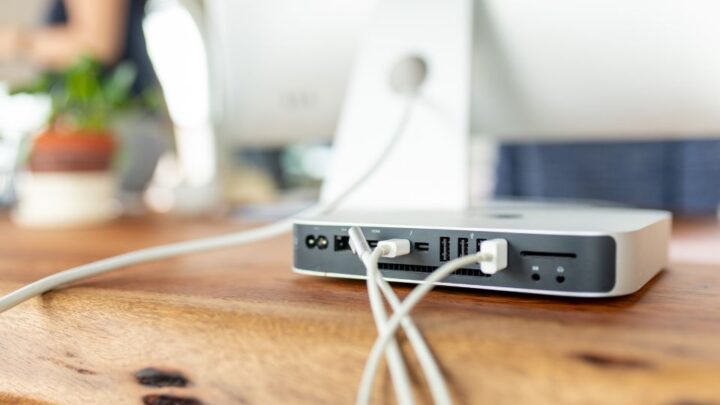
USB-C is a common example. The same connector can support different combinations of data transfer, charging, and display output. A cable may fit correctly while the required function remains unavailable.
Before purchasing, establish:
- Which connection the device requires
- Which ports your existing equipment provides
- What those ports actually support
- Whether a particular cable is required
- Whether a dock or adapter is needed
- Whether that component supports the required function
Treat adapters and docks as part of the compatibility chain. They can solve specific connection differences, but they cannot create capabilities the underlying equipment does not support.
Check Peripheral And Accessory Compatibility
Home-office technology rarely operates in isolation. Replacing one device can affect equipment you expected to keep.
Check existing:
- Monitors
- Docking stations
- Webcams
- Headsets
- Keyboards and mice
- Printers
- Other work-critical peripherals
A computer upgrade, for example, may change available ports, display support or software requirements. The computer can be suitable while an older dock or peripheral becomes the compatibility problem.
Before replacing a central device, identify everything connected to it and confirm what must remain usable.
Check Network Requirements Where Relevant
Some equipment depends on Wi-Fi, Ethernet, internet access, or cloud connectivity.
Confirm these requirements, but distinguish device compatibility from network performance. If the real problem is poor coverage, unstable Wi-Fi, or unreliable connectivity, replacing an endpoint device may not address the cause.
Those problems require network or Wi-Fi assessment rather than equipment compatibility checks.
Check Power And Physical Setup Requirements
Technical compatibility does not automatically make equipment practical for the workspace.
Consider:
- Power and charging requirements
- Available outlets
- Cable lengths and routing
- Device dimensions
- Port locations
- Desk space
- Monitor and peripheral positioning
These constraints become more important with multi-monitor setups, docks, chargers, and multiple peripherals.

Common Compatibility Mistakes That Lead To The Wrong Purchase
Many incompatible technology purchases happen because only part of the compatibility chain was checked.
Common mistakes include:
- Checking one specification only. Several requirements often need to work together.
- Assuming the correct connector is enough. Matching ports do not guarantee matching capabilities.
- Checking only the new device. Existing monitors, docks, peripherals, and software can determine whether it is suitable.
- Overlooking operating system versions. General platform support does not mean every version is supported.
- Assuming an adapter solves incompatibility. Adapters cannot overcome every hardware or functional limitation.
- Replacing one component in isolation. A new device can create additional upgrade requirements.
- Relying on broad product descriptions. General compatibility statements may not reflect your equipment and intended use.
When several components are interconnected, assess compatibility as a system rather than product by product.
Look For Hidden Upgrade Dependencies
A purchase can create additional costs if it requires other parts of the setup to change.
Replacing a work computer, for example, may affect:
- An existing docking station
- Monitor connections
- Peripheral support
- Required cables or adapters
- Software or driver availability
Before committing, ask:
- What existing equipment must continue working?
- Which components depend on the device being replaced?
- Will anything require a new cable, adapter, or dock?
- Are there software dependencies?
- Does another component need upgrading for the new equipment to provide the intended benefit?
These dependencies affect the real cost and practicality of the purchase, not just technical compatibility. Identifying them early can prevent a straightforward purchase from becoming an unexpected wider upgrade.
Use A Pre-Purchase Compatibility Check
Before ordering equipment, check the purchase against your actual home-office environment.
- Define what the technology needs to do. Start with the work requirement rather than product features.
- List what it must work with. Include computers, monitors, docks, software, and important peripherals.
- Check exact system requirements. Compare hardware and operating system requirements with your existing equipment.
- Verify connection capabilities. Check required data, display, charging, and other functions, not just connector shape.
- Confirm software support. Include drivers, utilities, and applications essential to your work.
- Identify additional components. Determine whether cables, adapters, docks, or other equipment are required.
- Check practical requirements. Consider network dependencies, power, cabling, and available workspace.
- Identify secondary changes. Determine whether another component must be upgraded or replaced.
- Verify anything uncertain. Use specifications for the exact models involved rather than broad compatibility statements.
If important dependencies remain uncertain, buying first and resolving compatibility problems afterwards introduces avoidable risk.
When Compatibility Is Worth Checking Professionally
Straightforward purchases can often be checked using manufacturer specifications and a clear understanding of the existing setup.
A professional device compatibility assessment becomes more useful when several components are involved, or an incorrect purchase could significantly disrupt work.
Consider having compatibility checked when:
- Several devices need to operate together
- Multiple monitors or a docking station are involved
- An expensive purchase depends on existing equipment
- Manufacturer information does not clearly answer the compatibility question
- Important software or peripherals must remain usable
- One upgrade appears likely to require several other changes
- Previous purchases have resulted in compatibility problems
- Reliable operation is important to day-to-day work
The assessment should determine whether the proposed technology suits the existing home-office environment and intended workflow, rather than simply whether individual products can connect.
For complex purchases, resolving this before ordering equipment can be more practical than discovering hidden requirements during installation.
What If You Have Already Bought The Device?
If equipment has already been purchased and is not working as expected, the situation has moved beyond pre-purchase compatibility checking.
Do not immediately assume the product is defective. The cause may involve configuration, software, connections, or another component. Diagnosing new device IT problems is therefore different from checking compatibility before purchase.
Likewise, compatible equipment may still need correct installation and configuration. If the products are suitable but need integrating into the existing workspace, hardware installation is the relevant next step.
This distinction helps identify whether the issue is product suitability, a technical problem, or implementation.

Frequently Asked Questions
These common questions clarify key compatibility issues to check before choosing new technology for your home office.
How Do I Know If A Device Is Compatible With My Computer?
Check the manufacturer’s requirements against your exact computer, operating system, available connections, and intended use. Include docks, monitors, or other equipment the device needs to work with.
Does Having The Right Port Mean A Device Will Work?
Not necessarily. Matching connectors can support different capabilities. Check whether the port provides the data, display, charging, or other function the device requires.
Can An Adapter Fix Incompatible Technology?
Sometimes. An adapter can solve specific connection differences, but it cannot overcome unsupported hardware, software, or functionality. Confirm what the adapter supports and the capabilities of the equipment on both sides.
Should I Check Compatibility Before Upgrading My Computer?
Yes. Check the monitors, docking station, peripherals, and software you intend to keep. A suitable new computer can still create replacement or connection requirements elsewhere.
What Should I Do If I Cannot Confirm Compatibility?
Avoid guessing when a purchase is expensive, work-critical, or dependent on several existing components. If exact manufacturer specifications do not resolve the uncertainty, a device compatibility assessment can evaluate the proposed purchase against the wider setup.
Check Compatibility Before Committing To A Purchase
The best time to resolve technology compatibility questions is before equipment is ordered.
For straightforward purchases, check the complete chain of hardware, software, connections, and existing equipment. When several devices or upgrade dependencies are involved, assessing compatibility before purchasing can reduce avoidable replacements, integration problems, and work disruption.