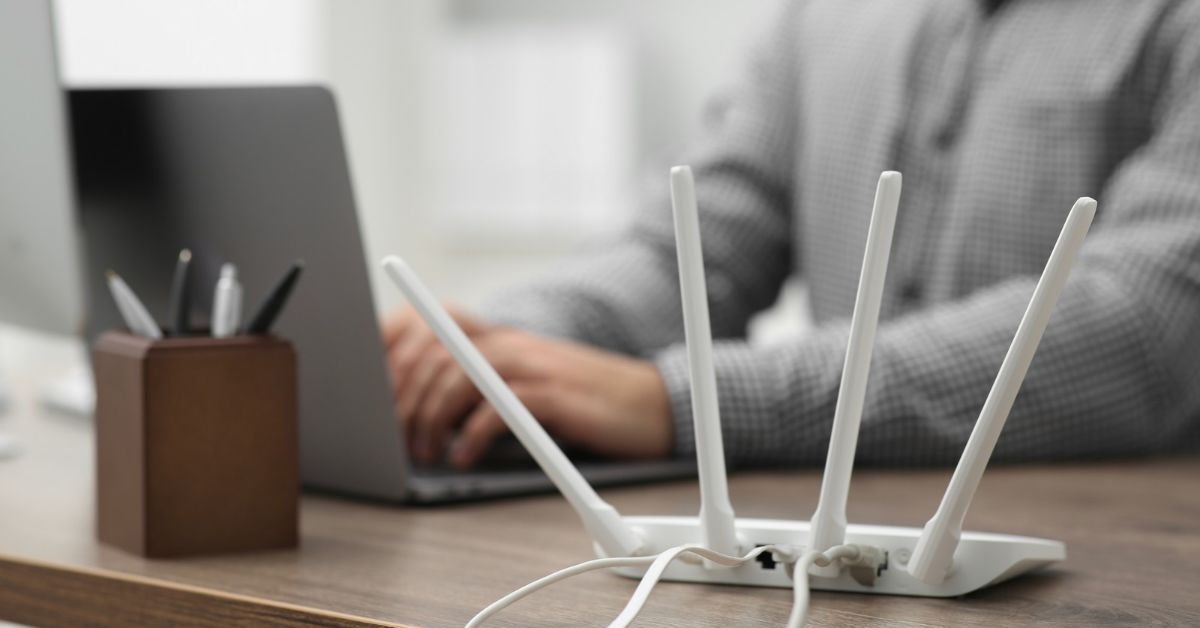
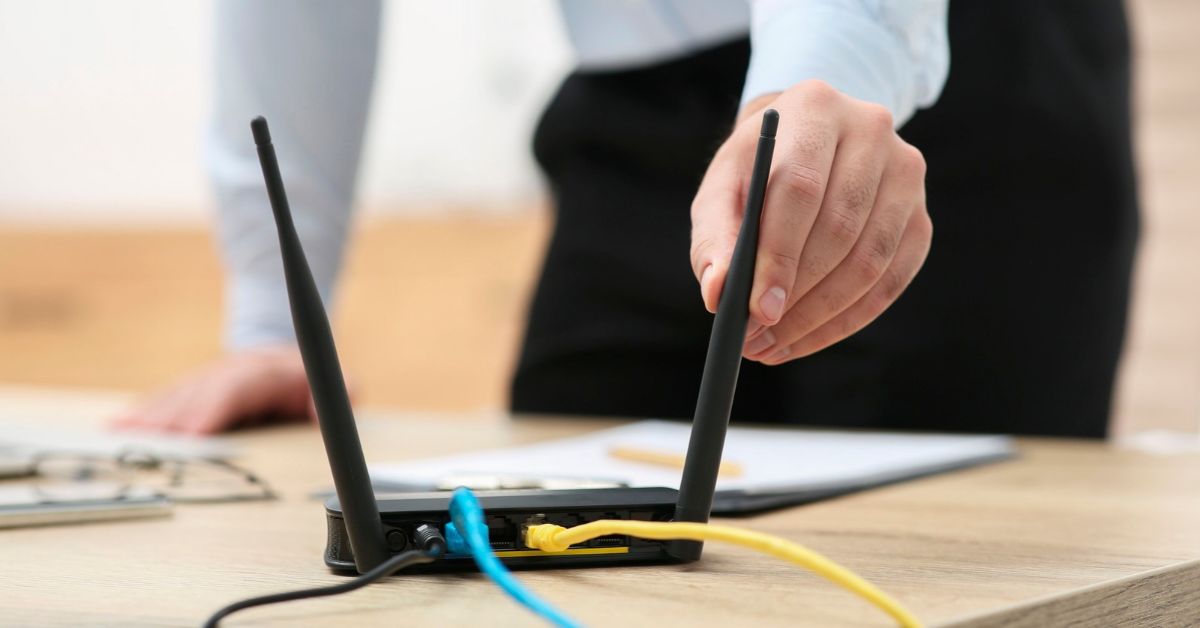
Reliable home office WiFi is not simply about getting the highest speed test result. Your connection needs to remain stable where you work, especially during video calls, cloud-based work, file transfers, and other tasks that depend on consistent connectivity.
If you want to improve home office WiFi, start by identifying what is limiting performance before changing equipment. Router location, physical barriers, wireless conditions, network demand, and existing equipment can all affect the result.
The most effective approach is to make targeted changes, test them from your workspace, and consider larger network changes only when simpler improvements are not enough.
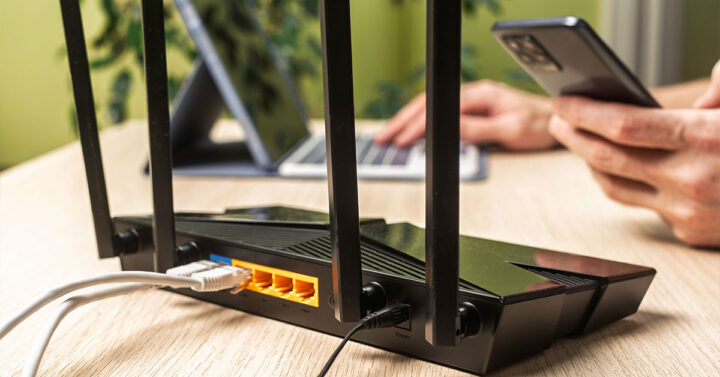
What Better Home Office WiFi Performance Actually Means
Better WiFi performance should make your working connection reliable, consistent, and suitable for your workload. Maximum speed is only one measure.
A home office connection should provide:
- Reliable coverage: The connection remains usable at your normal workspace.
- Consistent performance: Large fluctuations do not regularly interrupt work.
- Stable video calls: Meetings are not disrupted by wireless dropouts.
- Responsive cloud access: Online applications and files remain practical to use.
- Capacity for normal work: The network supports your usual devices and activities.
An internet service can offer plenty of speed while WiFi at the home office remains poor. The aim of WiFi optimisation is to make the connection work reliably where and how you use it.
Check Whether WiFi Is Actually The Problem
Before applying WiFi optimisation tips or purchasing hardware, check whether the wireless connection is the likely source of the problem.
Test the connection from your normal workspace, then repeat the test closer to the router. A substantial improvement near the router can indicate that distance, physical barriers, or coverage are contributing to the issue.
Check whether the problem affects one device or several. If only one laptop struggles while other devices work normally in the same location, the issue may be device-specific. Similar problems across multiple devices suggest a wider connectivity problem.
Where practical, compare WiFi with a wired connection. This can help separate a wireless issue from a problem affecting the underlying internet connection.
Before making changes, note:
- Where the problem occurs
- Which devices are affected
- What you are doing when performance deteriorates
- Whether the problem is continuous or intermittent
- Whether performance changes at different times
This is not intended to replace detailed diagnosis of why WiFi is slow. It gives you enough information to make deliberate changes rather than relying on trial and error.

Improve The Connection Between Your Router And Workspace
The physical relationship between your router and home office can significantly affect wireless performance.
Distance, walls, floors, furniture, and building materials can all make it harder for WiFi to reach your devices effectively.
Review what sits between the router and your workspace. Common obstacles include:
- Multiple walls or floors
- Dense construction materials
- Large furniture or cabinetry
- Routers inside cupboards or enclosed spaces
- Long distances between the router and office
Avoid unnecessarily enclosing networking equipment or positioning it where surrounding objects restrict coverage.
The aim is not simply to place the router beside your desk. It may also need to serve the rest of the home. Instead, correct obvious positioning problems that make the path to the workspace unnecessarily difficult.
More detailed router placement mistakes should be considered in the context of coverage across the wider property, rather than optimising for one computer alone.
Reduce Interference And Wireless Competition
A clear path to the router does not guarantee consistent performance. WiFi operates alongside other wireless networks, connected devices, and electronic equipment.
Look for patterns. Does performance change at particular times? Does it improve closer to the router? Does one available WiFi connection provide greater stability at your desk?
Different WiFi frequency bands can also behave differently depending on distance and physical barriers. One may provide higher performance under favourable conditions, while another may be more practical further from the router.
Avoid choosing solely on theoretical maximum speed. The better connection is the one that remains reliable during actual work.
There is also little value in changing advanced wireless settings at random. Establish a repeatable problem, make one relevant adjustment, then test the result.

Review What Your Home Network Is Being Asked To Handle
Your home office usually shares the network with other activity.
Other people may be streaming, gaming, joining calls, or downloading files. Your own devices may be synchronising data, installing updates, running backups, or transferring files in the background.
Consider whether WiFi performs well during quieter periods but becomes inconsistent when more people or devices are online. If so, the issue may involve overall network demand rather than coverage alone.
Your workload matters too. Email and basic web applications place different demands on the network from:
- Video conferences
- Large cloud-based files
- Frequent uploads and downloads
- Multiple work devices
- Background backups or synchronisation
- Several simultaneous online applications
Understanding these patterns helps prevent unnecessary coverage changes when the wider network workload is contributing to the problem.
Check Whether Your Existing Equipment Can Cover The Workspace Properly
Minor adjustments cannot always compensate for the limitations of the existing setup.
This becomes more likely when the home office is:
- Far from the router
- On another floor
- Behind substantial physical barriers
- Located in an extension or isolated area
- One of several spaces requiring dependable WiFi
Existing networking equipment may also be poorly suited to current devices, working requirements, or the coverage expected across the property.
However, replacing the router should not automatically be the first response.
Newer equipment cannot necessarily overcome an unsuitable location or difficult property layout. Replacing hardware without identifying the limitation can leave the original problem unchanged.
Before purchasing equipment, determine whether you are trying to solve a hardware limitation, positioning problem, inadequate coverage, or wider network issue.
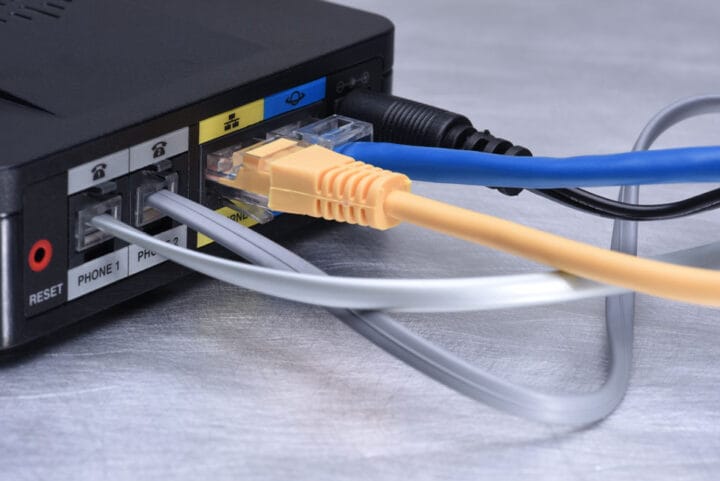
Know When Additional WiFi Coverage May Help
Some properties are difficult to cover effectively from a single wireless source.
Multiple levels, larger floor plans, substantial construction materials, and offices far from the main networking equipment can limit what simple adjustments can achieve.
A mesh WiFi system or additional access points may help extend usable coverage in these situations.
The important question is not whether mesh WiFi is generally better. It is whether your network has a coverage problem that additional infrastructure can solve.
Before adding equipment, consider:
- Property layout
- Existing networking equipment
- Home office location
- Other areas requiring coverage
- Devices using the network
- Required connection reliability
Treat additional coverage as a network planning decision rather than the automatic next step after repositioning a router.
Test Whether Your Changes Actually Improved Performance
Test every optimisation change from the location where the problem matters: your normal workspace.
A speed test can provide a useful comparison, but it should not be the only measure. Repeat the activities that previously exposed the problem and assess:
- Video call stability
- Cloud application responsiveness
- File transfer performance
- General connection consistency
- Performance across your normal work devices
Compare the results with your original baseline.
Where possible, change one significant variable at a time. Moving the router, changing several settings, and installing hardware simultaneously makes it difficult to determine what actually improved performance.
Intermittent problems also need longer testing. A connection working well for a few minutes does not prove that a problem occurring several times during the working day has been resolved.
The real measure of success is a better working experience, not simply a higher test result.

Common WiFi Optimisation Mistakes To Avoid
Many unsuccessful attempts to improve home office WiFi start with a solution before the problem has been identified.
Common mistakes include:
- Buying a new router immediately: New hardware cannot automatically correct poor positioning, difficult coverage, or an unrelated internet problem.
- Judging the network only by a speed test: A short test does not show whether the connection remains stable throughout the working day.
- Testing beside the router: Performance needs to be assessed where you work.
- Adding hardware without understanding coverage: More equipment does not necessarily create a better network.
- Making several changes at once: This makes it difficult to identify what improved or worsened performance.
- Assuming faster always means better: A stable connection suited to your workload can be more useful than occasional peak speeds.
- Replacing equipment without checking requirements: New hardware should address an identified limitation.
The practical principle is simple: measure first, change deliberately, then verify the result.
When DIY WiFi Improvements Are Not Enough
Basic optimisation can resolve straightforward positioning, coverage, or wireless issues. Persistent problems may require a more structured assessment of the network, equipment, workspace, and property.
Professional input may be useful when:
- WiFi remains unreliable after basic improvements
- Coverage differs substantially between rooms or floors
- The workspace is difficult to reach from existing networking equipment
- Several people or work devices require dependable connectivity
- You are unsure whether current equipment is suitable
- You are considering mesh WiFi, additional access points, or broader network changes
- Previous hardware purchases have not solved the problem
At this point, continuing to purchase or reposition equipment can become another form of trial and error.
A professional WiFi optimisation service can assess the working environment, existing equipment, coverage requirements, compatibility, and network demands before recommending changes.
For a home office, the objective is not simply stronger WiFi. It is a network that supports reliable, productive work over the longer term.

Frequently Asked Questions
These common questions can help clarify the next step when improving home office WiFi.
How Can I Make My Home Office WiFi More Reliable?
Test the connection at your normal workspace and compare it with performance closer to the router. Check physical barriers, network demand, and whether the existing equipment provides adequate coverage.
Make one relevant change at a time and retest using the activities that normally expose the problem.
Will A New Router Improve My Home Office WiFi?
It may help if the existing router is genuinely limiting performance or no longer suits your network requirements.
It will not automatically correct poor positioning, difficult coverage, interference, or problems elsewhere in the connection. Identify the limitation before deciding whether replacement is appropriate.
Is Mesh WiFi Better For A Home Office?
Mesh WiFi can be useful when a property requires broader wireless coverage than one router can provide effectively.
Its suitability depends on the home layout, existing network, workspace location, and coverage requirements. It should address an identified coverage problem rather than be treated as a universal upgrade.
Should I Use Ethernet Instead Of WiFi For My Home Office?
A wired connection can be useful where consistent connectivity is particularly important and connecting the workspace by cable is practical.
It does not necessarily replace the need for reliable WiFi. Laptops, phones, tablets, and other devices may still depend on wireless coverage.
Why Is My WiFi Still Slow After Moving The Router?
Router position is only one variable. Persistent problems can involve coverage, interference, network demand, equipment, individual devices, or the underlying internet connection.
If repositioning has not helped, identifying why the WiFi remains slow is more useful than continuing to move equipment or buying replacements without a clear diagnosis.
Improve Your WiFi Around The Way You Actually Work
Better home office WiFi comes from identifying the real constraint, making targeted changes, and testing performance under normal working conditions.
When coverage or reliability problems persist, professional WiFi optimisation can help determine whether the existing setup can be improved or broader network changes are justified.